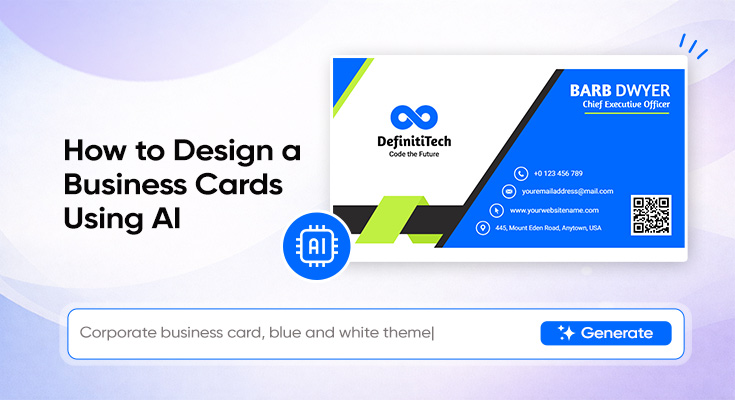
First impressions in business still often begin with something physical, and a business card remains a simple, effective way to make yourself memorable. With AI business card design, creating a professional card has become faster and easier than ever. Even in a digital world, it offers a quick, tangible way to share your identity.
In fact, business cards have a 12% conversion rate, far higher than the 2.35% average for websites. The problem? Designing a great one used to take hours or cost hundreds of dollars to hire a designer.
That’s where AI-powered tools come in. They allow anyone – freelancer, entrepreneur, startup founder, or corporate professional design high-quality, print-ready business cards with ease, even without prior design experience.
Step-by-Step Guide to Designing Business Cards Using AI
Gather Your Brand Information Before You Start
Before you open any AI tool, preparation is everything. The quality of your AI-generated design depends heavily on the information you feed it. Think of AI as a skilled designer who can only work with what you give them. The more detailed and specific your inputs, the better your first draft will be.
Here’s everything you need to gather beforehand:
Essential contact details:- Full name (and credentials if relevant, e.g., “Dr.” or “MBA”)
- Job title — be specific. “Senior UX Designer” gets better results than just “Designer.”
- Company name
- Phone number (include country code if needed)
- Professional email address
- Website URL
- LinkedIn profile or other relevant social handle
- Your logo file (PNG or SVG format preferred)
- Brand colors – hex codes if you have them (e.g., #1A2B3C)
- Brand fonts, if already defined
- Your industry and target audience
- Brand personality described in 2–3 words – for example, “minimal, modern, trustworthy” or “bold, creative, energetic.”
Having all of this ready before you start saves time and leads to a stronger, more on-brand result from the very first AI generation.
Don’t just describe yourself as “professional.” Be specific about your brand’s vibe — “clean and minimal like a fintech startup” or “warm and approachable like a wellness brand” gives the AI a much richer creative direction to work with.
Open DesignWiz AI Business Card Tool
For AI business card design, DesignWiz is one of the most powerful and beginner-friendly tools available. It combines genuine AI intelligence with a clean, intuitive interface so you get professional-quality results without needing any design experience.
Here’s why DesignWiz stands out for business card design:
- AI-powered generation — DesignWiz doesn’t just swap text into templates. It analyzes your brand inputs and generates layouts, color schemes, and typography combinations tailored specifically to your industry and style preferences.
- Instant brand matching — Upload your logo, and DesignWiz automatically extracts your brand colors and applies them consistently across your card design.
- Multiple unique variations — Generate dozens of distinct card designs from a single set of inputs, giving you real creative options to compare and choose from.
- Full customization — Every element is editable: fonts, colors, spacing, layout, logo placement, and more.
- Print-ready export — DesignWiz exports your design in high-resolution formats suitable for professional printing, including PDF and PNG at 300 DPI.
- Double-sided design — Design both the front and back of your card in the same workflow.
Head to DesignWiz and create a free account. Once you’re in, navigate to the Business Card section to begin your design.
Write Your Prompt
This is the step most people rush through, and it’s where the biggest quality difference is made. Your prompt is the instruction you give DesignWiz to generate your card design. The more specific and descriptive your prompt, the closer the AI’s first draft will be to your ideal card.
What a strong prompt includes:- Your name, title, and company
- Your industry (be specific – “independent wedding photographer” is better than just “photographer”)
- The style or aesthetic you want (minimal, bold, luxurious, playful, corporate, modern, vintage, etc.)
- Your preferred color palette or brand colors
- Any must-have elements (logo, QR code, tagline, social handle)
- The feeling you want the card to create – “premium and trustworthy” or “creative and approachable.”
“Business card for a designer.”
Example of a strong prompt:“Design a modern, minimal business card for Sarah Lee, Senior Brand Strategist at Apex Studio. Use a navy blue and warm white color palette. The card should feel clean, authoritative, and premium. Include name, title, email, phone, and website. Add the logo in the top left corner.”
Mention your target audience in the prompt if it helps. A card designed to impress tech startup founders should feel very different from one designed to connect with boutique retail clients. DesignWiz uses this context to fine-tune the design direction.
Learn more: A well-structured prompt makes a big difference, and using proven AI business card prompts can help you generate more accurate and creative results.
Generate Your Business Card
With your prompt ready, hit generate and let DesignWiz do its work. Within seconds, you’ll have multiple AI-generated business card designs ready to review.
Here’s how to evaluate the results effectively:
Customize and Refine the AI-Generated Design
Here’s the golden rule of AI business card design: the best results come from 80% AI work and 20% you. Let DesignWiz handle the heavy lifting on layout, color, and typography, then add your personal touch to make the card uniquely yours.
Typography adjustments:- Increase the font size of your name and title if they don’t feel prominent enough
- Replace the AI-suggested font with your defined brand font if you have one
- Stick to clean, legible fonts for contact details. Decorative or script fonts should only be used for headline elements, never for contact information
- Minimum font size for print: 8pt. Recommended: 10pt or above for all contact details
- AI-generated color suggestions can sometimes be slightly too vibrant. Dialing back the saturation by 10–15% produces a more polished, print-friendly look
- If you have specific brand hex codes, override the AI’s color choices manually to match your identity exactly
- Ensure a strong contrast between text and background, critical for print legibility
- AI tools sometimes crowd elements together. Adding breathing room and whitespace around text blocks instantly makes the card feel more premium
- Adjust your logo placement if the AI positioned it somewhere that feels off-balance
- Group related information logically: name and title together, contact details together
- A brief tagline beneath your title (“Helping brands tell better stories”)
- A QR code linking to your portfolio, website, or LinkedIn
- A subtle brand pattern or texture on the back of the card
• Don’t add so much information that the card becomes cluttered – keep only the essentials
• Don’t use more than two font styles on a single card
• Don’t sacrifice readability for aesthetics – if you’re squinting to read it, it needs adjusting
Add a QR Code (Optional but Recommended)
One of the smartest upgrades you can make to a modern business card is a QR code. It bridges the gap between your physical card and your digital world, giving recipients an instant, frictionless way to connect with you online.
What to link your QR code to:- Your website or portfolio
- Your LinkedIn profile
- A digital vCard – so recipients can save your contact details instantly with one tap
- A specific landing page, booking link, or lead magnet
- Your Instagram or Behance, if you’re a creative professional
DesignWiz has a built-in QR code feature. If you’d prefer a standalone generator, tools like QR Code Generator or Bitly work well – generate the code first, then add it to your DesignWiz design.
Placement tips:- Place the QR code on the back of the card in a bottom corner for a clean, uncluttered front
- Keep the QR code at least 2cm x 2cm, so it scans reliably after printing
- Leave a small white margin around the QR code. This improves scan accuracy
- Add a one-line call-to-action near the code: “Scan to visit my portfolio” or “Tap to connect on LinkedIn.”
Always test your QR code on multiple devices, both iOS and Android, to confirm it scans correctly and that the destination page loads fast and looks great on mobile.
Export in the Right Format for Print or Digital
The format you export in determines the final quality of your printed or digital card. This step is critical, and getting it wrong is one of the most common reasons business cards look unprofessional when they arrive from the printer.
For professional printing:- Export as PDF – the most universally accepted format by print shops worldwide
- Alternatively, export as SVG or EPS (vector formats that scale infinitely without any quality loss)
- Ensure the resolution is at least 300 DPI (dots per inch) – anything lower will appear blurry when printed
- Set the color mode to CMYK if your printer requires it – most professional print shops do
- Add 3mm bleed on all sides so your design extends to the card’s edge after trimming
- Standard card size: 3.5 x 2 inches (US) or 85 x 55mm (international standard)
- Export as PNG (high-resolution, supports transparent backgrounds)
- Use as your email signature, LinkedIn banner, or shareable digital card via link or QR code.
Learn more: Following the correct business card size ensures your design prints accurately without alignment or trimming issues.
Benefits of Using AI for Business Card Design
Many people assume AI business card tools are simply a shortcut for beginners with no design skills. The truth is they offer meaningful advantages for professionals at every level — from solo freelancers to established businesses. Here’s a deep look at why AI business card design is worth considering:
1. Dramatically Faster Than Traditional Design
Designing a business card manually in Photoshop or Illustrator or briefing a freelance designer and going through revision rounds can take anywhere from hours to days. With AI, you go from a blank screen to a print-ready design in under 15 minutes. For busy entrepreneurs and professionals, that time saving is immediate and significant.
2. Professional Quality Without a Design Background
AI tools like DesignWiz are trained on thousands of professionally designed business cards. They understand fundamental design principles, visual hierarchy, color theory, font pairing, whitespace, and layout balance, and apply them automatically. The result is that someone with zero design experience can produce a card that looks like it came from a professional graphic designer.
3. Significant Cost Savings
Hiring a professional designer for a business card can cost anywhere from $50 to $500, depending on their experience. AI business card tools offer comparable quality at a fraction of that cost, often free, or at a small monthly subscription fee. For startups, freelancers, and small businesses managing their budget, this is a meaningful saving with no compromise on output quality.
4. Instant and Consistent Brand Identity
One of the biggest challenges for small businesses is keeping visual identity consistent across all materials. AI tools solve this elegantly. Upload your logo, define your brand colors and fonts, and DesignWiz applies them consistently across your business card, and many platforms extend this to letterheads, social media graphics, and email signatures, keeping your entire brand cohesive without manual effort.
5. Real-Time Customization and Iteration
Unlike briefing a designer and waiting days for revisions, AI tools let you customize in real time. Change a color, swap a font, adjust spacing, move your logo, and you see the result instantly. Want a completely different direction? Generate a new batch in seconds. This real-time creative loop means you can explore far more design directions than traditional workflows allow, at zero extra cost.
6. Multiple Design Variations on Demand
AI allows you to generate dozens of distinct variations from the same inputs in seconds. You can compare options, gather feedback from colleagues or clients on multiple designs, and make a more confident final choice. Traditional design doesn’t offer that creative range at no additional cost.
7. Smart Industry-Specific Design Suggestions
The best AI tools don’t generate one-size-fits-all designs; they adapt to your industry and role. A card for a UX designer will feature a more creative, modern layout. A card for a financial consultant will lean toward clean, authoritative typography on a conservative palette. This contextual intelligence means your card is more likely to feel appropriate and impressive for your specific professional world from the very first draft.
8. Easy to Update and Reuse
Business details change new phone numbers, new job titles, and new companies. With DesignWiz, your design is always saved to your account. Update your details, regenerate, and download a new print-ready file in minutes. Compare that to contacting a designer, explaining the change, waiting for a revised file, and paying for the revision.
9. Digital Card Option for a Sustainable Alternative
Several AI platforms now support digital business card exports shareable via QR code, NFC tap, or a direct link. This reduces paper waste while keeping your contact information always current and instantly shareable. In industries where sustainability is part of the brand identity, a digital AI-designed card sends a positive additional message about your values.
Exploring printable business card design ideas can also help you discover layouts that match your industry and brand personality.
Frequently Asked Questions
Yes. DesignWiz offers a free plan that lets you design, customize, and download business cards at no cost. Some premium export formats, like high-resolution print PDF, may require a paid plan, but you can start and experiment entirely for free.
No. DesignWiz is built for anyone, regardless of design background. You provide your details and a prompt, and the AI generates professional layouts, color schemes, and typography automatically. All you need to do is review, customize, and export.
PDF is the most universally accepted format by professional print shops. SVG and EPS vector formats are also excellent since they scale without quality loss. Always export at 300 DPI minimum. Avoid JPEG for print it compresses the file and reduces sharpness.
Yes, AI generates unique design combinations based on your specific inputs, brand colors, industry, style preferences, and content. To ensure your card feels truly distinctive, always apply personal customizations after generation: match your exact brand colors, use your specific fonts, add your logo, and a QR code.
Yes. The AI business card tool supports double-sided business card design. Use the front for your core contact details and the back for your logo, tagline, QR code, or a brief list of services. A thoughtfully designed back significantly elevates the overall impression your card makes.
Final Thoughts
AI business card design has truly leveled the playing field. What once required time, skill, and a big budget can now be done in minutes by anyone with results that look polished and professional. You can even create custom business cards online with personalized branding, layouts, and AI-powered design tools. But remember, AI works best as your design partner. The quality of your card depends on the inputs you give and the final tweaks you make.
A business card is still a powerful part of your personal brand. With AI removing the barriers, there’s no reason your card shouldn’t make a strong impression every time you share it. Follow the steps, apply the tips, and create something that’s not just AI-made but genuinely effective.
Related Posts