By Nirav Alagiya, Co-Founder & CEO, DesignWiz
Printing should be the easiest part of creating a design.
But for many users, it was the most uncertain step.
They could spend time creating a professional design, choosing colours, adjusting text, and finalising every detail—then download the PDF and still wonder: Will this print correctly on my paper? Will my design be cropped? Will I see unwanted margins?
That uncertainty mattered because nearly half of DesignWiz users create designs for printing.
So we decided not to treat printing as a simple PDF download. We treated it as a product problem that needed to be solved.
The research: 15 days to understand the real printing problem
Before building a solution, we spent 15 days understanding how users move from a digital design to a printed page.
We connected with:
- More than 50 DesignWiz users who create designs for printing
- More than 15 printing shops across the United States
- Users who print at home, in offices, and through professional print providers
We wanted to understand one question: Why can a design look correct in the editor but produce an unexpected result when printed?
The answer was not that users were designing incorrectly. The issue was that the design size, PDF page size, and available paper size often did not match.
For example, a design created in a 650 × 800 proportion does not match A4 paper exactly. When a design and paper have different proportions, users need to make a choice:
- Keep the full design visible, which can leave extra space around it
- Fill the whole paper, which can crop part of the outer design
Previously, users could not clearly make this choice or preview the result before downloading.
What we learned
Across user conversations and print-shop feedback, the same issues appeared again and again.
Users needed more control over:
- The paper size used for their PDF
- How their design fitted on that paper
- Whether the full design stayed visible or the page was filled edge to edge
- Crop marks and bleed for professional printing
- The final PDF output before downloading
The key insight was simple:
A print-ready design is not only about creating a good design. It is also about matching that design to the paper and print method the user actually needs.
What we built
Based on this research, we rebuilt the DesignWiz Print PDF experience around control, visibility, and confidence.
Users can now configure their PDF before downloading it.
Choose the paper size
Users can select the paper size that matches their printer or print-provider requirement.
Supported paper sizes include:
- A1
- A2
- A3
- A4
- A5
- A6
- B5
- US Letter
Changing the paper size does not change the original design. It only controls how the design is placed in the exported PDF.
Choose how the design fits on the paper
Different print needs require different results. That is why we introduced two fit options.
| User goal | Option | Result |
|---|---|---|
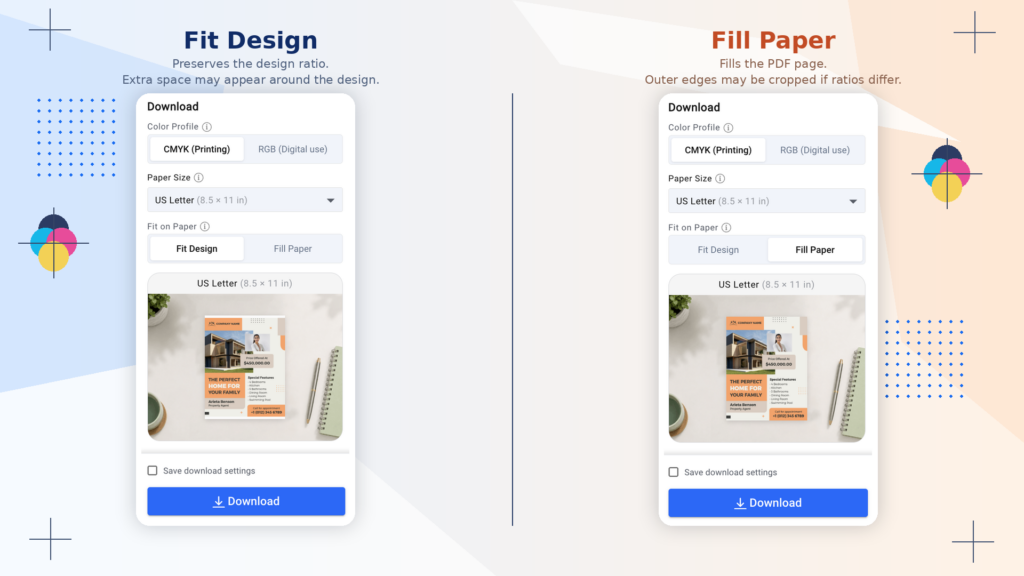
| Keep the complete design visible | Fit Design | Preserves the design ratio. Extra space may appear around the design. |
| Fill the paper edge to edge | Fill Entire Page | Fills the PDF page. Outer edges may be cropped if the ratios differ. |
Fit Design
Fit Design scales the complete design within the selected paper size while preserving its original proportions.
Nothing is stretched, and nothing is cropped. It is the right choice when users want every part of their design to remain visible.
Fill Entire Page
Fill Entire Page enlarges the design to cover the selected PDF page.
It is the right choice when users want an edge-to-edge layout and can accept that some outer areas may be cropped.
Physical edge-to-edge printing also depends on whether the user’s printer supports borderless printing.
Add crop marks and bleed for professional printing
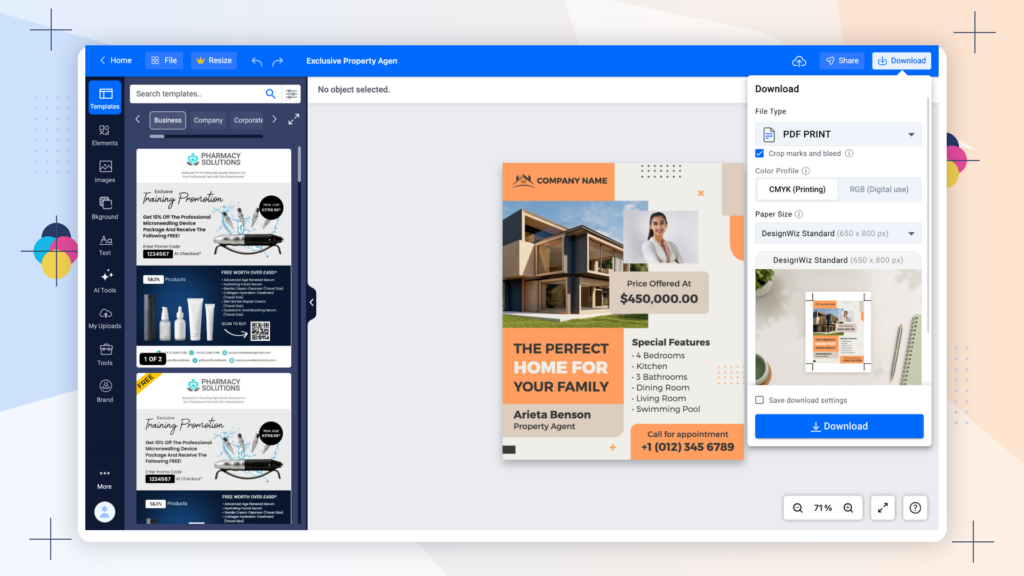
For print-shop workflows, DesignWiz supports crop marks and bleed.
Crop marks show where the printer should trim the page. Bleed extends the artwork beyond the trim line so the finished print does not show unwanted thin edges after cutting.
When crop marks or bleed are enabled, DesignWiz preserves the design proportion to support a professional printing workflow.
Preview the output before download
The most important part of the new experience is the live preview.
As users change paper size, fit mode, crop marks, bleed, colour mode, or page, the preview updates instantly.
Before downloading, users can see:
- The paper boundary
- The position of their design on the page
- Extra space created by Fit Design
- Areas that may be cropped by Fill Entire Page
- Crop marks and bleed areas
- The output for every page in a multi-page design
Instead of downloading a PDF and hoping for the best, users can make a decision before they print.
The result
DesignWiz now gives users a more complete print-preparation workflow.
They can create their design, choose the paper size they need, decide how the design should fit on that paper, prepare it for a professional print shop if needed, and preview the final result before downloading.
The result is not simply a PDF download. It is a more confident path from design to print.
What we are measuring next
As the feature reaches more users, we are tracking:
- Paper-size selection usage
- Fit Design versus Fill Entire Page usage
- Live-preview usage before download
- Print-related support requests
- Feedback from users and print shops
Our goal is simple: help every DesignWiz user prepare a PDF that matches their printing requirement before it reaches the printer.